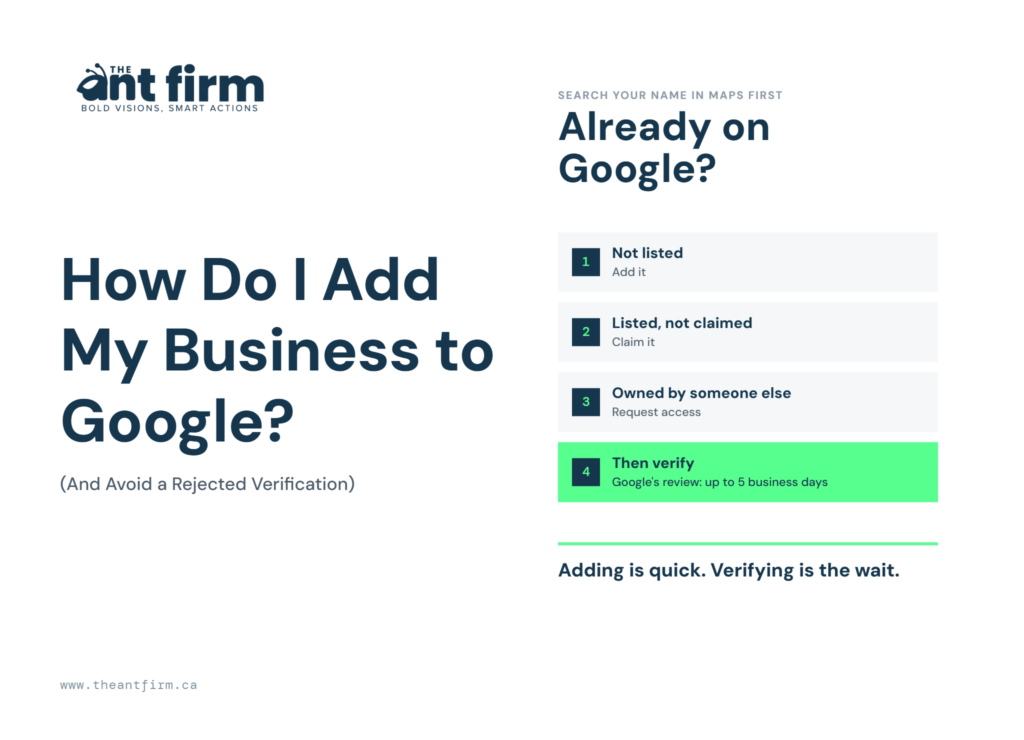
TL;DR: How do I add my business to Google? You create a free Google Business Profile at business.google.com/add. Search for your business name first. A listing may already exist, and that changes your steps. Your profile works only after Google verifies it. Google picks the verification method, not you. Google says reviews take up to 5 business days. Add the details first. Then plan for the wait.
Introduction
How Do I Add My Business to Google? Start with a free Google Business Profile and enter your business details. You will need your business name, category, address or service area, phone number, website, and business hours.
Adding the information is usually quick if you have everything ready. The part that can take longer is verification, as Google decides which verification method is available for your business.
You may be asked to verify your profile by phone, email, postcard, or video. The option you see depends on your business and location.
Before submitting your profile, check every detail carefully. Use your real business name and accurate information. This helps prevent problems during verification and keeps your profile consistent with the information customers see elsewhere.
In this blog, you will learn the steps in order. Here, you will see four real owners who failed verification, what Google told them, and also what the experts replied. Read those before you press verify.
How to Add a Business to Google Maps (Check If You Are Already Listed First)
Search your business name and city in Google Maps first. This takes one minute. Google allows one profile per business. A second profile is never the fix. Many owners ask “how do I add a business to Google Maps?” and skip this check. They end up with a duplicate.
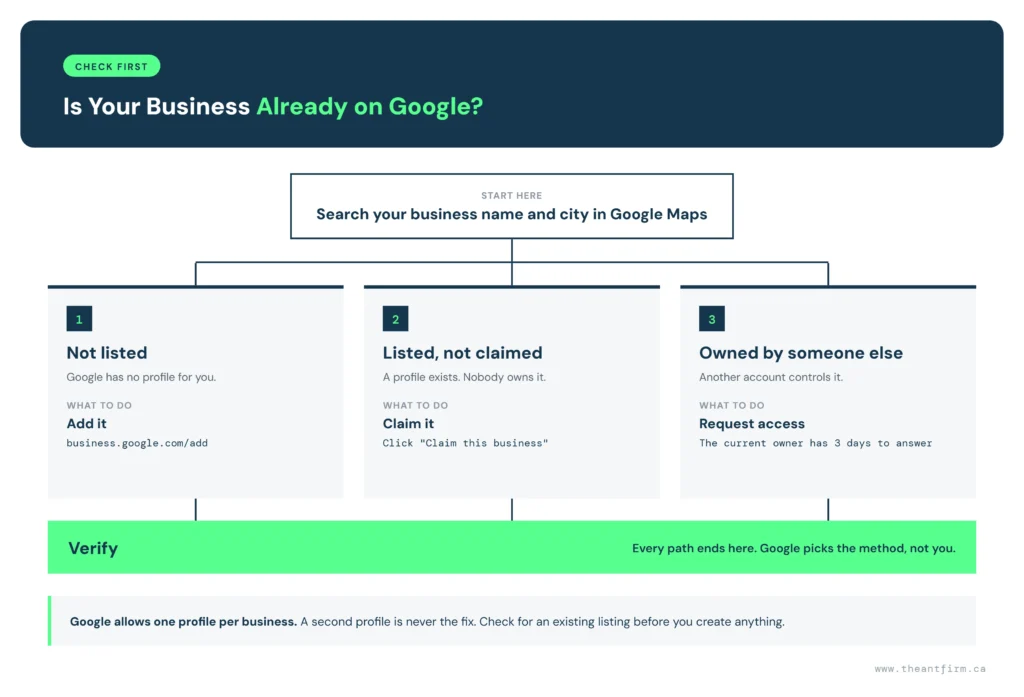
| Search result | What it means | What to click |
|---|---|---|
| Not listed | Google has no profile for you | Go to business.google.com/add and create one. Then verify. |
| Listed, not claimed | A profile exists. Nobody owns it. | Click Claim this business. Then verify. |
| Listed, owned by someone else | Another account controls it | Click Request access. The current owner has 3 days to answer. |
The 3 day window comes from Google’s ownership request page. Whitespark also tells owners to check for an existing listing first. A later section covers what to do when a request is denied.
The Setup Steps, Field by Field
Each step below shows what you type and one mistake to avoid.
Business name and category
Enter the exact business name that customers see on your sign, van, invoices, website, or other business materials. Do not add extra keywords, services, or your city just to appear in more searches. Google’s guidelines require businesses to use their real-world name.
Choose one primary category that best describes what your business does. For example, a plumbing company should choose Plumber. Choose the category that represents your main service instead of choosing one simply because it has more searches.
Address or service area
Choose a storefront address if customers visit your business there. If you travel to customers instead, set up a service area. If you work from home and do not receive customers there, you can hide your address.
Add the cities or postal codes where you actually serve customers. Google allows up to 20 service areas and sets limits on how far a service area can extend. You still need a real business address for verification. Keep your service areas realistic and focus on locations your team can actually reach.
Phone, website and hours
Add a phone number that customers can use to contact your business. Keep the phone available during the verification process if Google asks you to confirm your details.
Add your official website and regular business hours. Make sure the information matches what customers see elsewhere. You can update your phone number, website, and hours later if your business details change.
Verification: Google Picks the Method, Not You
Owners who ask “how do I add my business to Google” often miss the verification step. Google automatically chooses the verification method for your profile, and you cannot select a different option.
Depending on your business, location, and other details, you may see phone, text, email, postcard, or video verification. In some cases, Google may ask you to complete two verification methods. These options follow Google’s official verification process.
Know the timings.
- Review: up to 5 business days after you finish the steps.
- Postcard: most codes arrive within 14 days.
- Code: it expires after 30 days.
Google recommends video when your business qualifies. Video verification has four rules.
- Record at least 30 seconds.
- Record one unbroken take.
- Use a phone.
- Keep faces out of the frame.
Now prepare before you press verify. Google’s help page lists what to show. Show a street sign, an outside sign or a nearby business. That proves your location. Show branded equipment, tools or marketing materials. Show proof that you manage the business.
Sterling Sky says Google does not waive the video for a home based business. Plan for it. Colan Nielsen of Sterling Sky tells owners to keep faces out and add more proof. Darren Shaw of Whitespark calls the process painful from his own experience. Read his guide before you record.
Protect your postcard code too. Do not edit your name, address or category after you request it. Do not request a second code. A new request cancels the first one. Google lets you record a rejected video again.
What ChatGPT, Perplexity and Google Told a Scarborough Plumber
On Oct 6, 2026, we asked ChatGPT, Perplexity and Google’s AI the same setup questions a Scarborough plumber would ask. We did not run the prompts again. AI answers change from day to day. The table shows each answer next to Google’s help page.
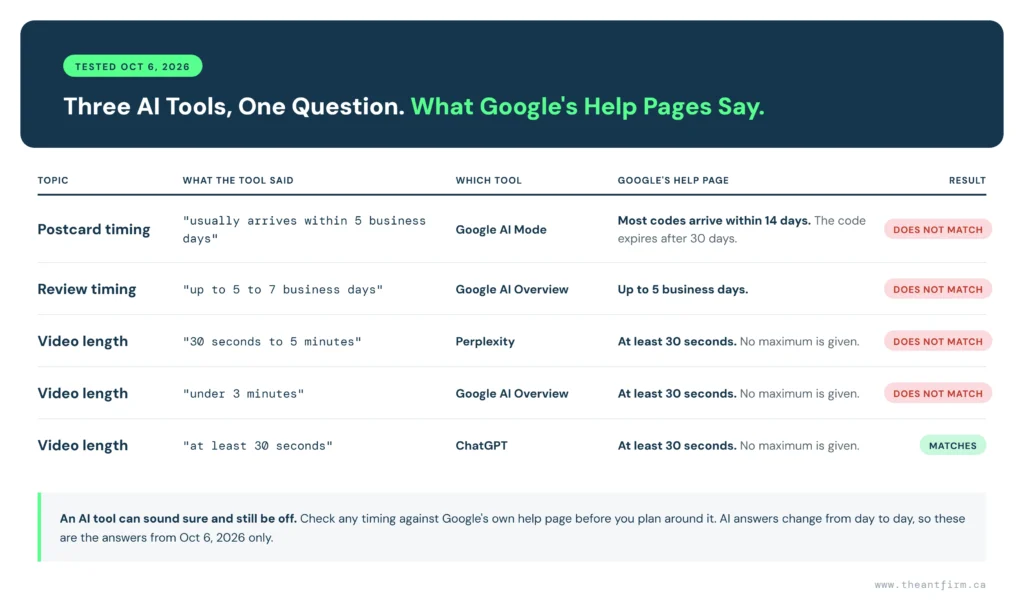
| Topic | What the tool said | Which tool | What Google’s help page says |
|---|---|---|---|
| Postcard timing | “usually arrives within 5 business days” | Google AI Mode | Most codes arrive within 14 days. The code expires after 30 days. |
| Postcard timing | “typically arrives within 5 to 14 business days” | Google AI Mode | Most codes arrive within 14 days. The code expires after 30 days. |
| Review timing | “up to 5 to 7 business days” | Google AI Overview | Reviews take up to 5 business days. |
| Choosing your own method | “you will be prompted to select a verification method” | Google AI Mode | Verification methods are automatically determined by Google and can’t be changed. |
| Video length | “at least 30 seconds” / “30 seconds to 5 minutes” / “under 3 minutes” | ChatGPT / Perplexity / Google AI Overview | At least 30 seconds long. No maximum is given. ChatGPT matches. The 5 minute and 3 minute limits are not on Google’s page. |
| “Free Google site” advice | “you can use a free Google site” | Perplexity | Google’s free Business Profile websites stopped working on March 1, 2024. A Google Business Profile itself remains free. |
| Service areas | Up to 20 areas, no radius | ChatGPT | Correct. You can have up to 20 service areas, with no radius. |
The tools were broadly right on the main points, but the comparison shows why Google’s official guidance matters. AI platforms can use information from multiple sources and may provide outdated or incomplete answers, so check important verification details and deadlines against Google’s current help pages.
Here, the lesson is that an AI tool can sound sure and still be wrong. Check any timing against Google’s own page before you plan around it.
Four Real Owners Whose Verification Was Rejected (And Why)
These cases come from public threads on the Local Search Forum. They show what the help pages leave out.
| Owner | What happened | What Google said or did | What the experts replied |
|---|---|---|---|
| Gutter installer, home address (Jun 2023) | Rejected for a service area that was too large | Then asked for a video of a private home | Video is not waived for a home based business |
| Personal trainer, no storefront (Dec 2024) | Could not prove a business with no storefront | Asked for five proofs | Joy Hawkins replied that not all five are needed |
| Video went from pending to unverified (Jun 2024) | Status flipped back after submission | Gave no clear reason | The forum administrator called it a likely fault on Google’s side |
| Two videos, no approval (Aug 2024) | Sent two videos | Gave no feedback | Colan Nielsen replied: no visible faces, add more proof |
Four patterns appear.
- The service area was set too wide.
- Nothing in the video showed the business name.
- Faces appeared in the video.
- One case looks like a fault on Google’s side.
Be honest about the outcome. Three of the four threads never reported a fix. Rejection is not rare. It is also not final. Record the video again. Add more proof. Show your name on a sign, a vehicle or a tool.
A denied ownership request is a different problem. Do not create a second profile. Google allows one per business. Follow the steps on Google’s ownership request page. Then contact Google Business Profile support.
After You Are Verified: Where Your Profile Sends People
After Google verifies your Business Profile, check the website field. This is where people can go if they want more information about your business.
Google stopped its free Business Profile websites on March 1, 2024. Search Engine Roundtable reported the change. The redirects from those websites ended on June 10, 2024. Today, the website field needs to link to a real website.
If your question was how do I add my business to Google, verification is only one part of the answer. You also need a website that gives visitors useful information about your services, prices, contact details, and business hours.
You can get a service business website from The Ant Firm for a flat $2,000. Connect it to your Google Business Profile and give potential customers a place to learn more before they contact you.
The Short Version
Adding your business to Google starts with creating a free Business Profile. Enter your real business details, choose the right category, and complete the verification process Google gives you.
If Google asks for video verification, follow the instructions carefully. Make sure your business name and other required details are visible during the video. Keep your profile information accurate and consistent.
After your profile goes live, check the website link. People who find your business through Google may visit your website before calling or sending a message.
So, How Do I Add My Business to Google?
Create the free profile. Check for an existing listing first. Pick one honest category. Set service areas you really cover. Record your video with your business name in view. Keep faces out of the frame. Your first try then has a real chance of passing.
Your profile is only the start. Customers who click it still need a website. You can get one from The Ant Firm for a flat $2,000. Ready to give your profile a proper home? See the $2,000 website build.
FAQ
Is it free to add my business to Google?
Yes. Google states there is no charge to add or claim a Business Profile. Some companies charge a fee to put you on Google. They sell you a free step. Do the setup yourself at business.google.com/add. Pay only for real extras you choose, such as a website or advertising. Never pay to get listed.
How long does Google business verification take?
Google says reviews take up to 5 business days. Postcard codes mostly arrive within 14 days. Codes expire after 30 days. Do not request a second code. A new request cancels the first one. Do not edit your name, address or category while you wait. Those edits break the code.
What if my business address is my home?
Set up the profile as a business that travels to customers. Hide your address. List your service areas instead. Google still needs your real address to verify. You may get a video request. Sterling Sky reports Google does not waive the video for a home-based business. Keep your home out of public view.
Why is my business not showing up on Google Maps after verification?
A verified profile can still take time to appear. Give it time. Check the primary category next. A wrong category keeps you out of the searches you want. Search your exact business name and city in Maps. Then read our guide on why a business is not showing on Google Maps.